
Your Calendar
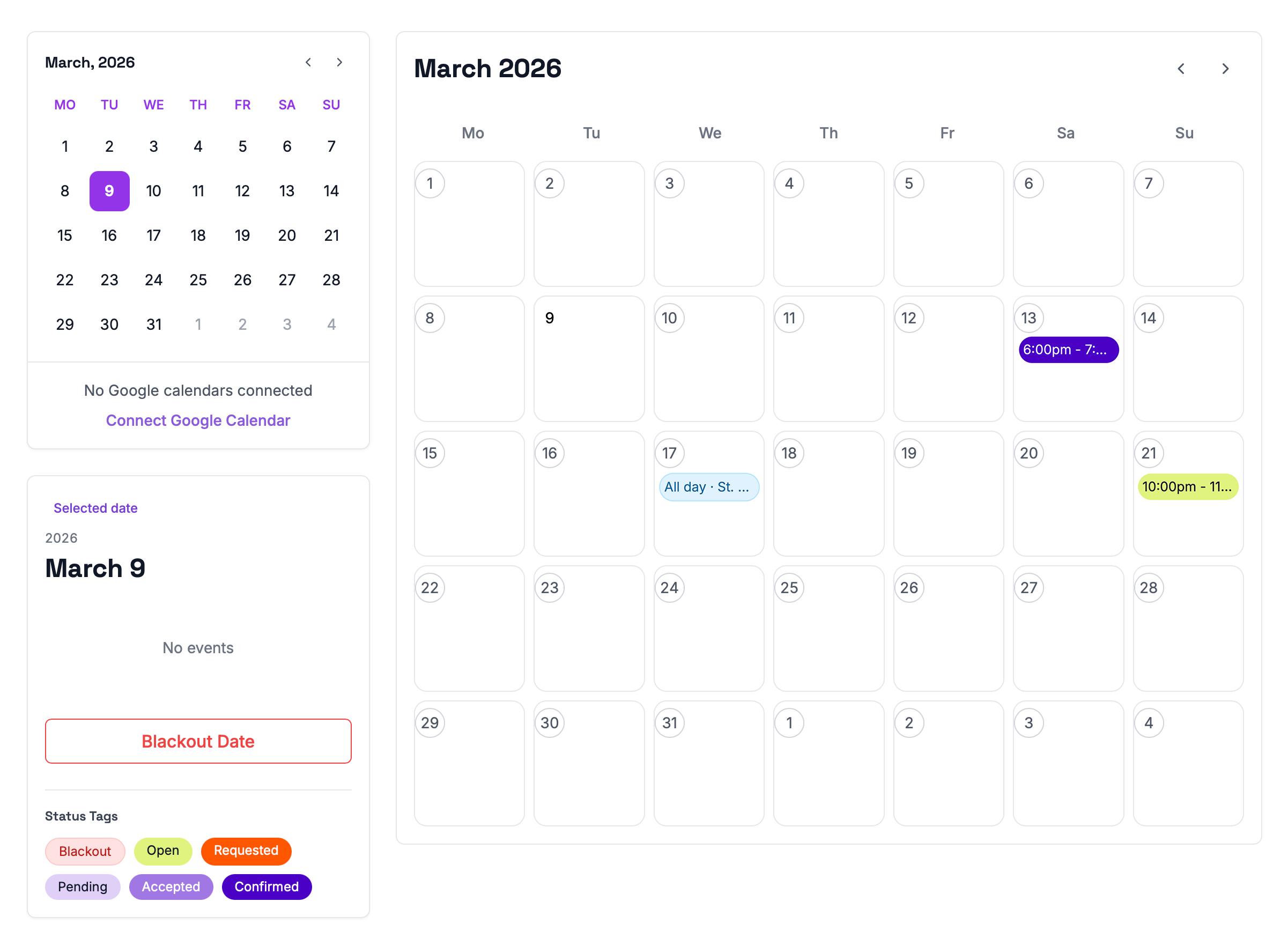
On the Calendar page, you can view all upcoming events at a glance. The built-in legend helps you quickly identify event statuses and understand how each time slot is scheduled.
To view more information about an event, click on a date that has a scheduled booking. A preview window will appear with basic event information. From there, select the event and click “View Details” to open the full Event Details page.
Connecting Google Calendar
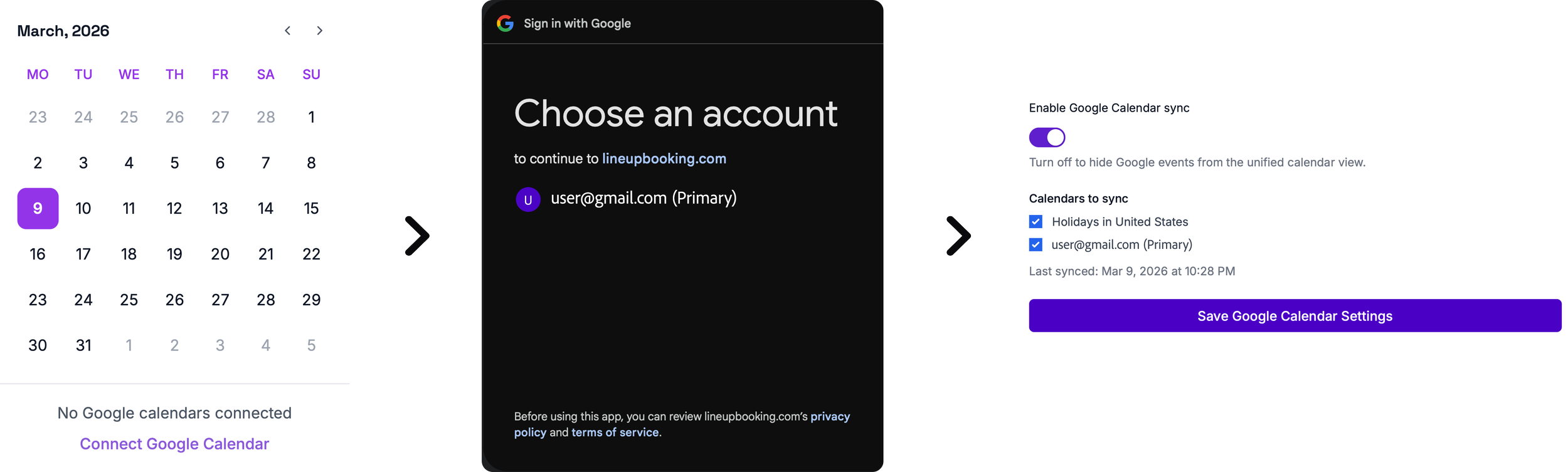
If you would like to integrate your Google Calendar with your Lineup calendar, select “Connect Google Calendar.” From the left hand panel.
Next, choose the Google account you’d like to connect, or sign in to your Google account if prompted.
Once connected, you’ll be taken to your Calendar Preferences. Here you can choose which calendars you’d like to sync. Available options include viewing United States holidays and events from your Gmail calendar.
After selecting the calendars you want to display, click “Save Google Calendar Settings.” and your calendars will now be synced with Lineup.
If you ever wish to disconnect your Google account, simply navigate back to Preferences and select “Disconnect Google Calendar.”
Creating Blackout Dates
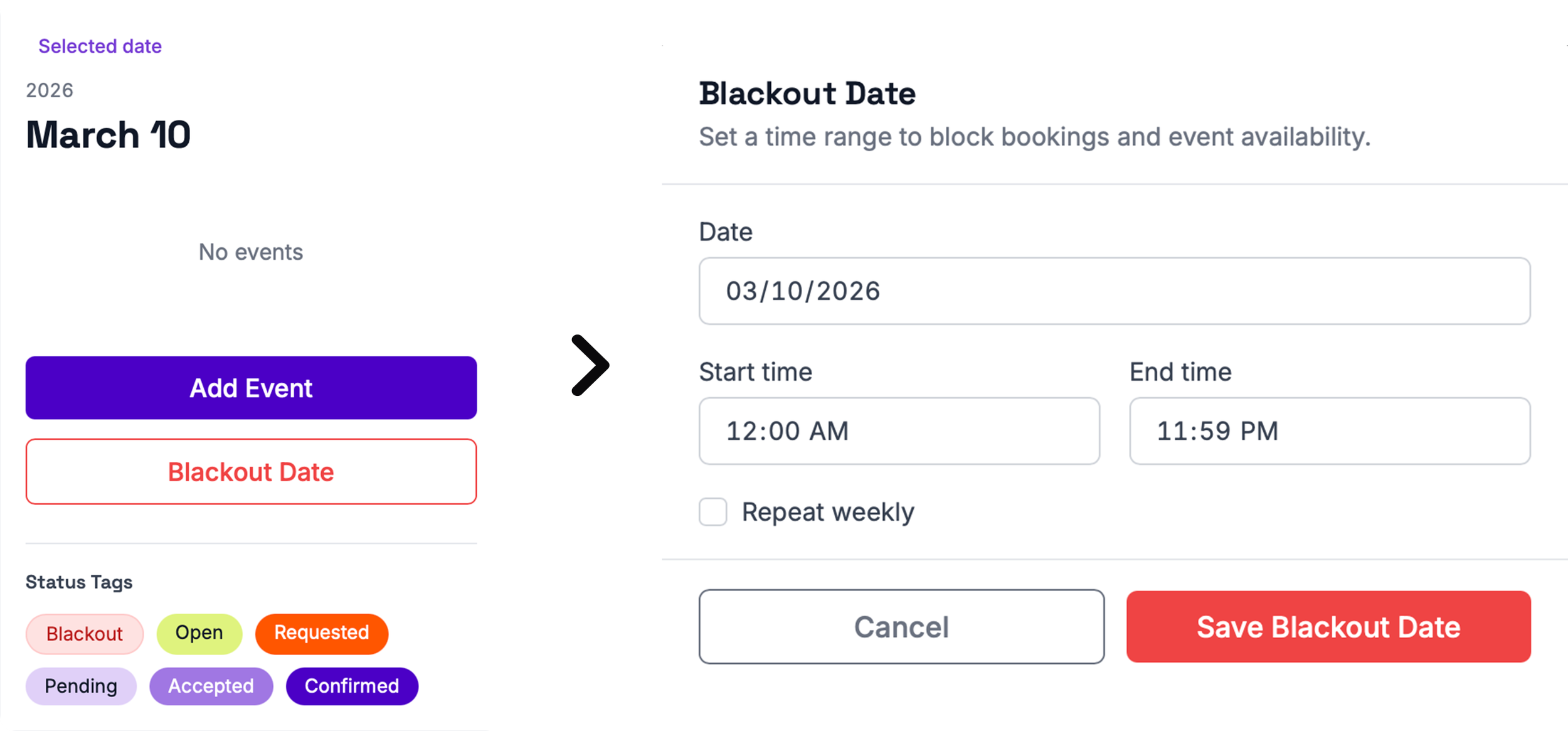
You can add blackout dates to your calendar by selecting the date you want to mark as unavailable. Then click “Blackout Date.”
If you want the entire day to be blocked off, simply leave the default time range set to 12:00 AM – 11:59 PM. Alternatively, you can select a specific time window to mark only part of the day as unavailable.
If you’d like this blackout period to repeat weekly, select the “Repeat Weekly” option.
Once your settings are configured the way you want, click “Save Blackout Date” to confirm and add it to your calendar.
In the next tutorial we’ll walk through the process of initiating a Booking Request, the steps involved in confirming a show, and how to get the most out of the tools available to you for booking a show.
