
Booking a Show
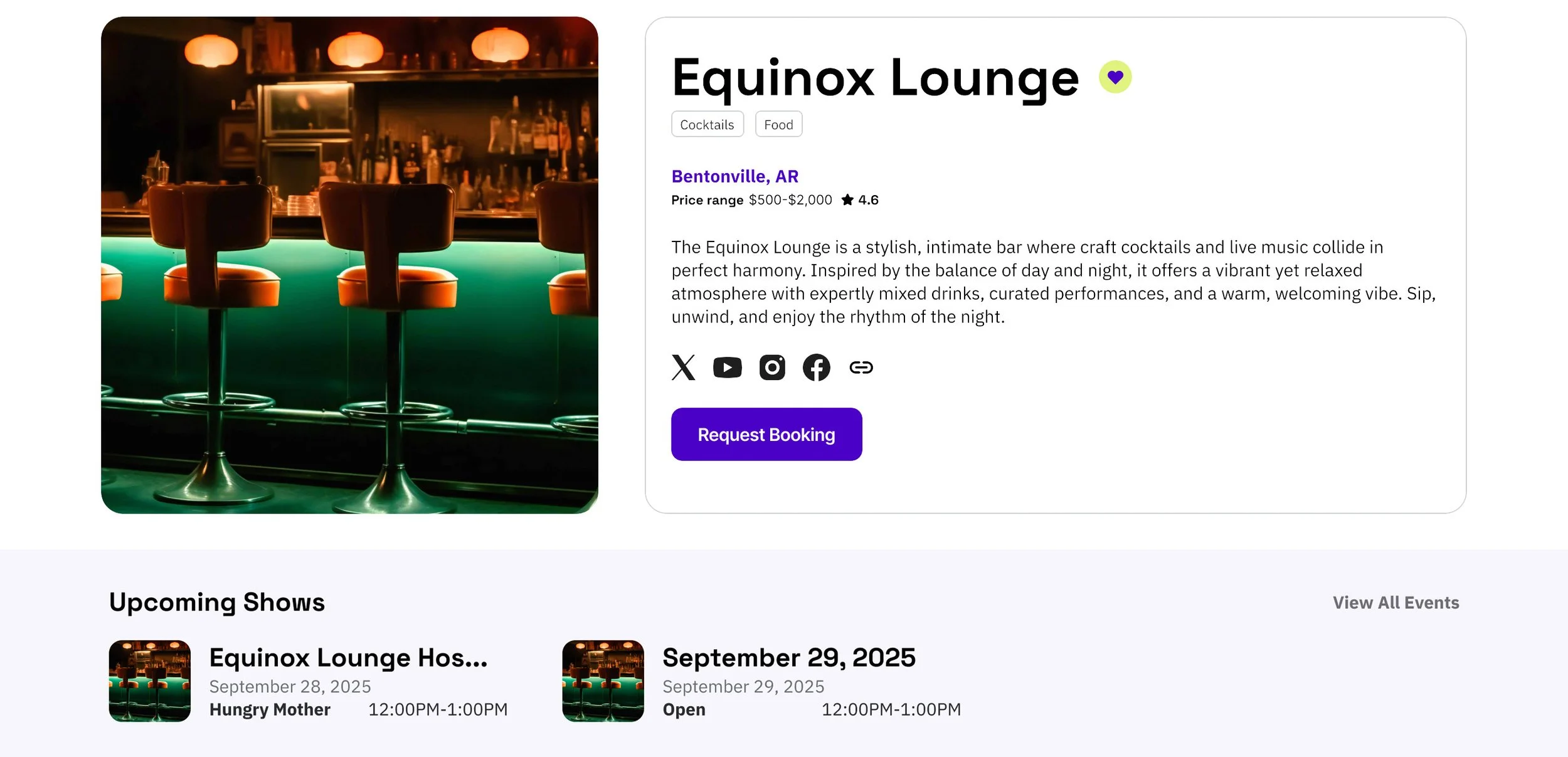
As an artist, you have two ways to request a booking on Lineup: directly from a Venue Profile or through the Available to Book section of your dashboard.
From a Venue Profile, you can select an open time slot under Upcoming Shows, or click “Request Booking” in the profile description to create your own booking request.
Note: The “Request Booking” option will only be available for venues that have enabled artist-initiated booking requests.
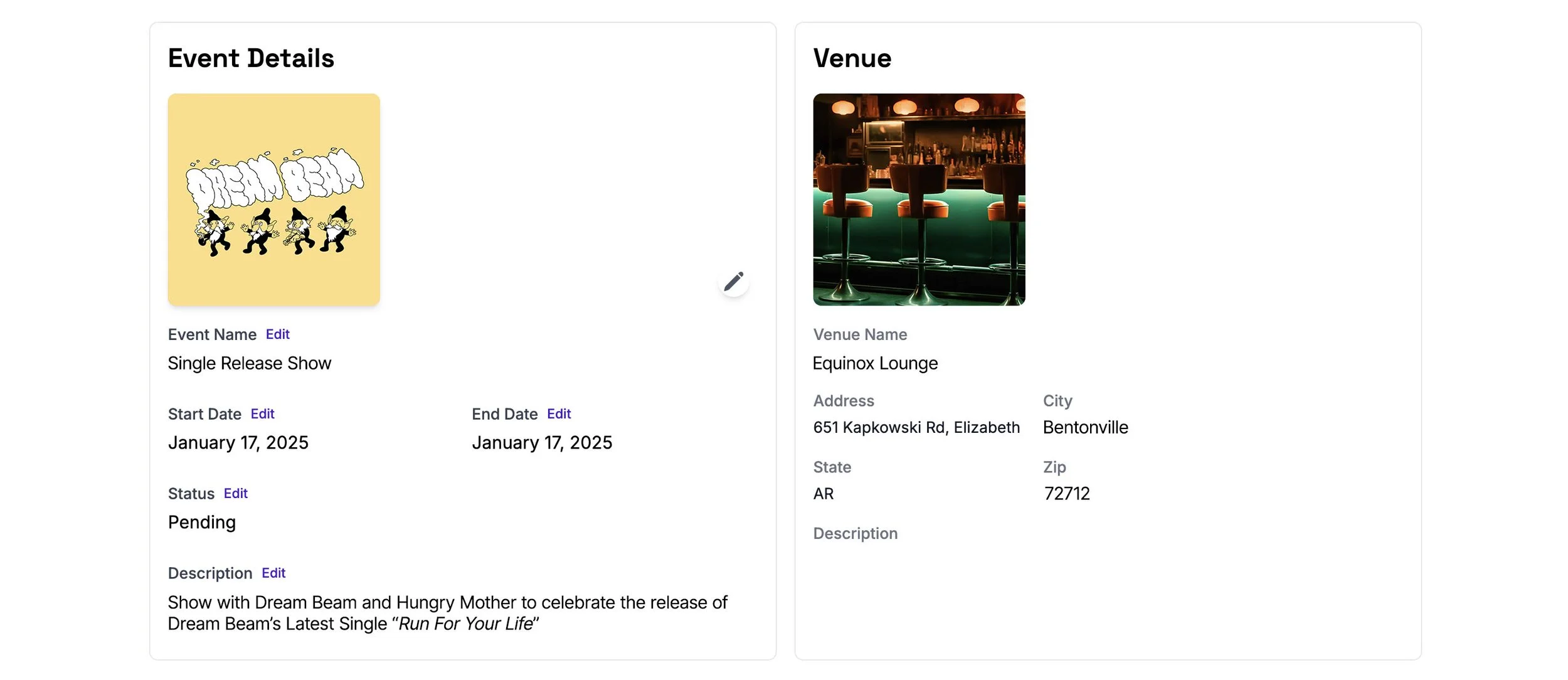
If you have selected to Request Booking and create your own event, an Event Page will be created automatically. On the Event Details page, you’ll be prompted to enter basic event information, including the Event Name, Start Date, End Date, and Event Description.
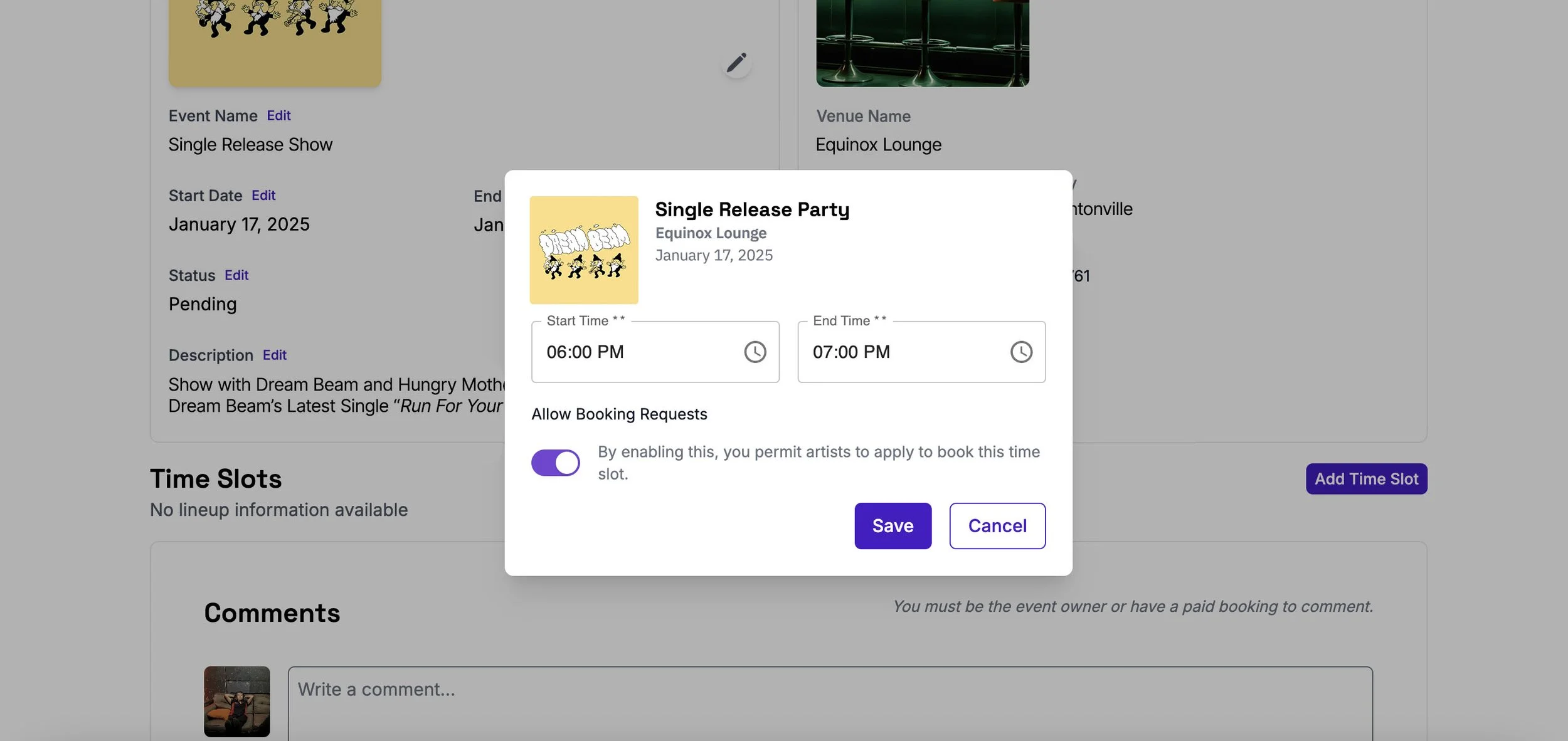
Once you’ve completed the details, select Add Time Slot to specify the Start Time and End Time for the Time Slot you wish to book.
After adding a Time Slot select “+ Book Artist for Time Slot”.
Note: You will only have the option to select yourself/the band you represent for one time slot. However, you have the option to create additional time slots and leave them open for other artists to request a booking if you wish.
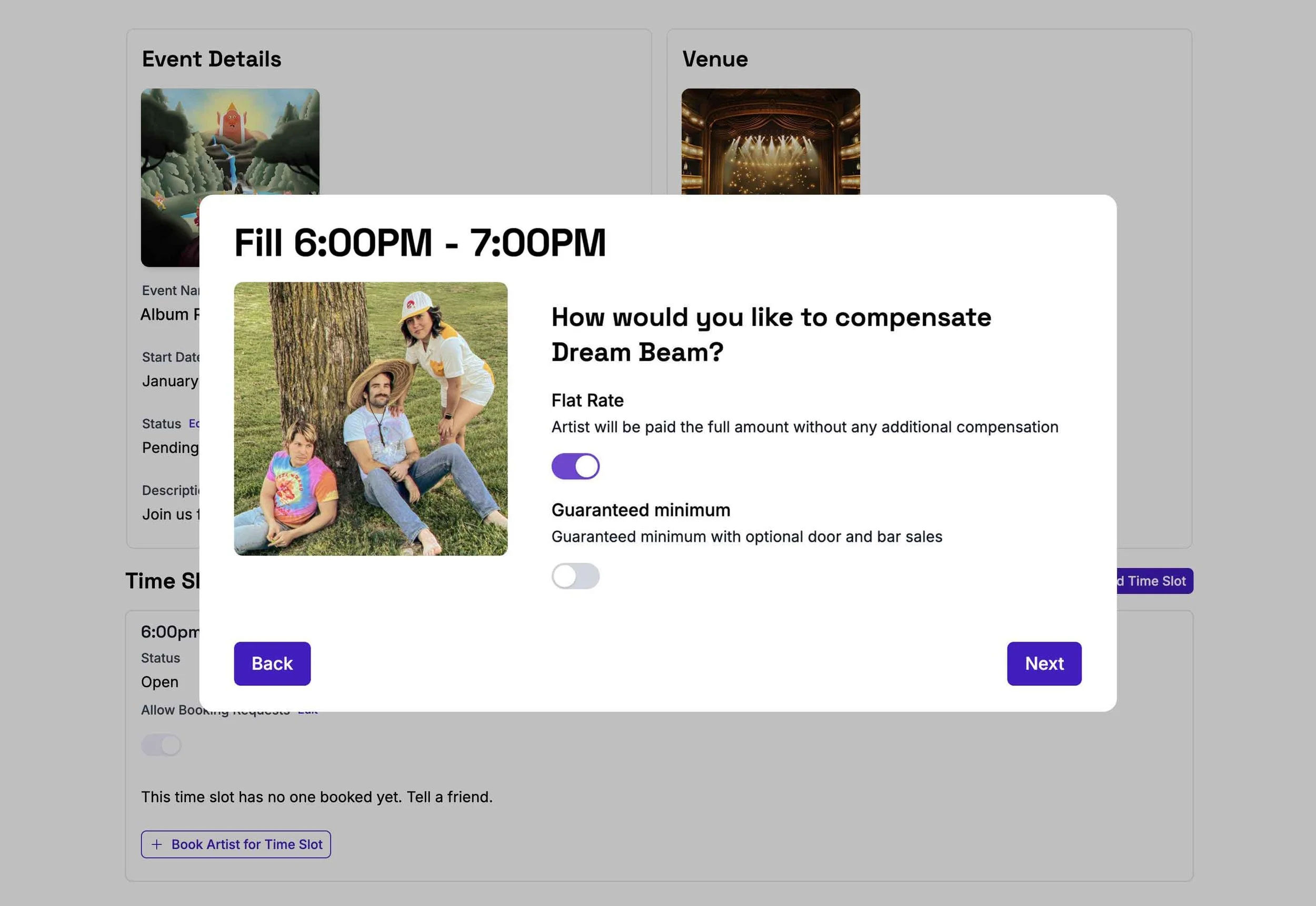
Once selected, you have the option to choose your preferred compensation rate. You can select from Flat Rate (the rate listed on your profile, or any specific dollar amount you wish to list), or Guaranteed Minimum (a guaranteed minimum rate, and a percentage of bar and/or door sales).
Note: If it is your first time booking with a venue we recommend you select flat rate as venue policies on guaranteed minimum vary drastically.
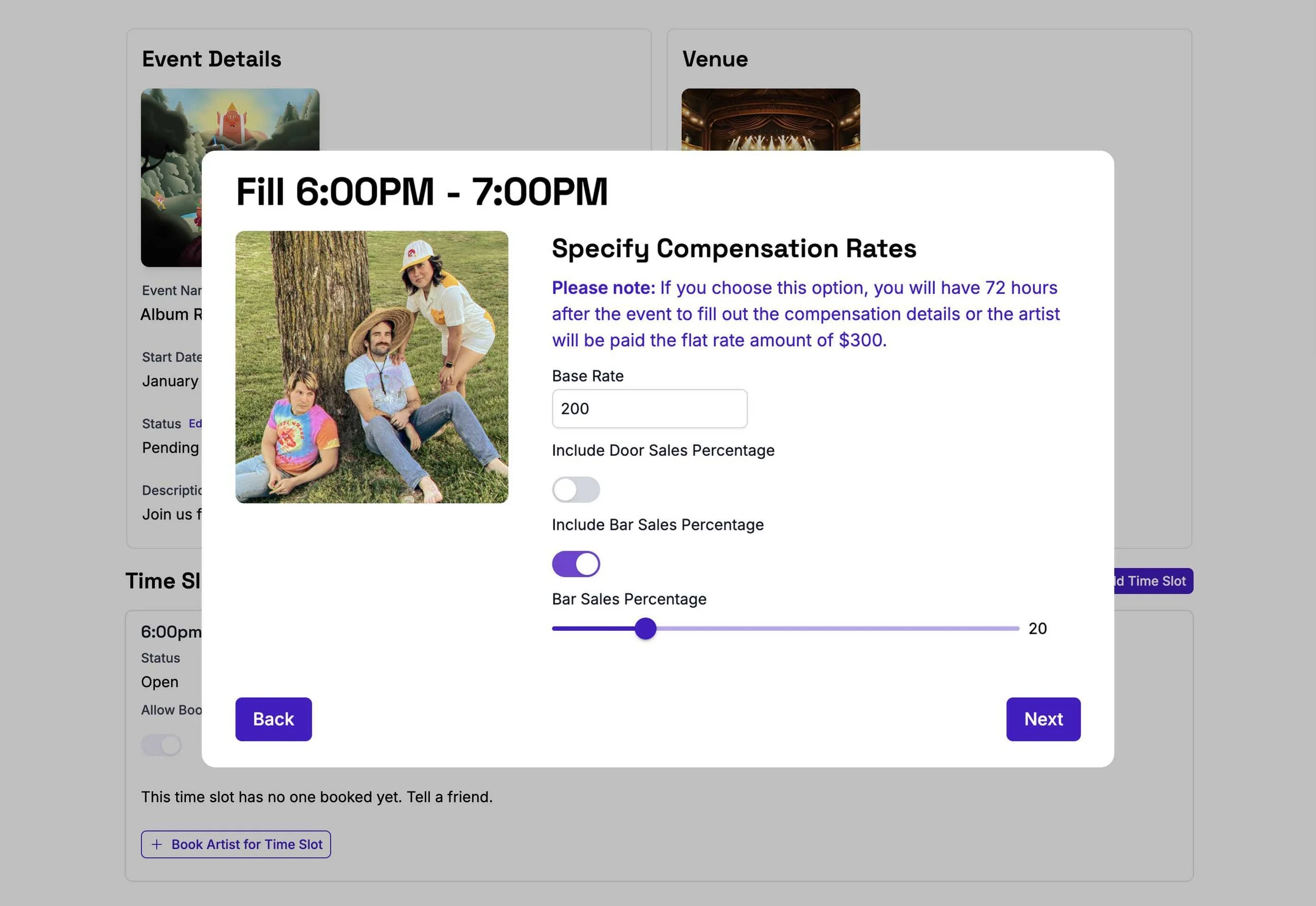
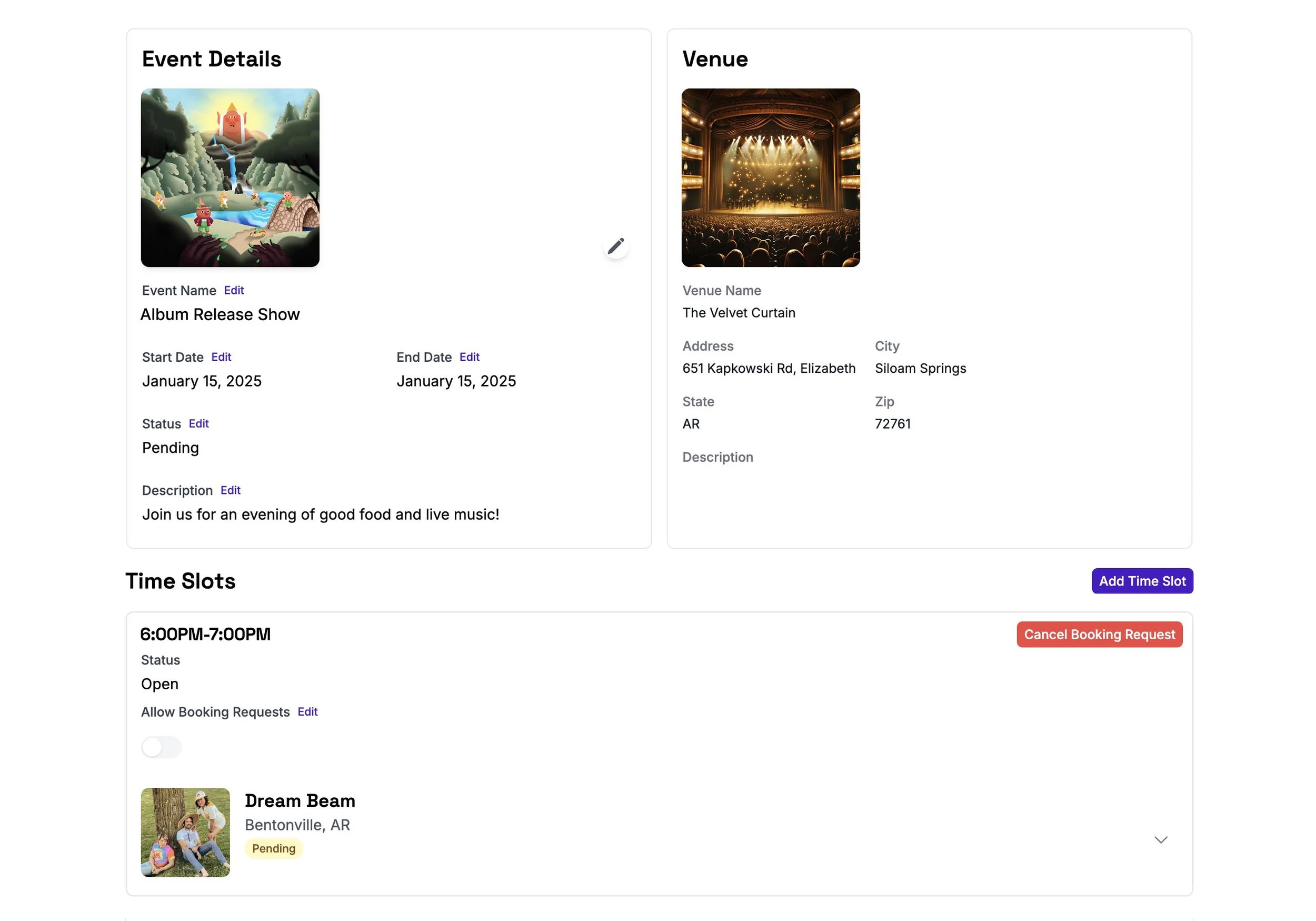
Once you have submitted your request, your Time Slot will appear as Pending on your event page, and the venue will be notified of your booking request.
If a venue accepts your request, you must confirm the booking to finalize it.
Booking with a venue works the same way whether you’re starting your own event from the description or filling an available time slot from the listings under Upcoming Events. Getting gigs has never been easier!
After an event has taken place you’ll be able to leave a Venue Review from the Event Page. you can access this from your dashboard under Payment History, or via the Calendar by clicking on a past event.
